Welcome to my blog. You can with your friends and collect the amazing picture from here and plz click on the ads by google

Saturday, April 25, 2020

Many Ways Of Malware Persistence (That You Were Always Afraid To Ask)

TL;DR: Are you into red teaming? Need persistence? This post is not that long, read it ;)
Are you into blue teaming? Have to find those pesky backdoors? This post is not that long, read it ;)

In the previous post, I listed different ways how a Windows domain/forest can be backdoored. In this new post, I am digging a bit deeper, and list the most common/known ways malware can survive a reboot, just using local resources of the infected Windows system. The list is far from complete, and I would like to encourage everyone to comment on new methods, not yet listed here.

From an incident response point of view, one of the best strategies to find malware on a suspicious system is to search for suspicious entries that start with the system. In the good old days, you had to check for 2-3 locations to cover 99% of the infections. Nowadays, there are a thousand ways malware can start. The common ones automatically start whenever Windows starts (or the user logs in), but some tricky ones are triggered by other events.

Autoruns

My favorite choice when it comes to malware persistence is Sysinternals tools, Autoruns. In this paragraph, I mainly quote the official built-in help, but bear with me, it is still interesting.

On a side note, there are some problems with the Autoruns tool: it can only run on a live system. (EDIT: This is not true, Autoruns can analyze offline systems as well! Thanks to a comment from Justin.) And usually, this is not the case - I usually have dd images. And although VBoxManage can convert the dd images to VirtualBox disk image format, usually I don't have the time and storage to do that. This is where xmount awesomeness is here to rescue the day. It can convert dd and Encase images on-the-fly in-memory to Virtualbox format. Just attach the disk image to a new Virtualbox machine as the main boot HDD, modify the CPU/disk/controller settings until Windows starts instead of crashing, and voila, you can boot your forensic image - without modifying a single bit on the original evidence dd file. Another problem with malware analysis on a live system is that a good rootkit can fool the analyst easily. 

For quick wins, I usually filter out Microsoft entries, look for per-user locations only and check for unverified (missing or invalid Authenticode) executables. This usually helps to find 90% of malware easily. Especially if it has a color like purple or pink, it is highly suspicious. To find the rest, well, one has to dig deeper.
Zeus "hiding" in the usual random directory - check the faked timestamp
To implement "poor-mans monitoring", regularly save the output of Autoruns, and during incident response, it will be highly valuable. Howto guide here.

Logon

"This entry results in scans of standard autostart locations such as the Startup folder for the current user and all users, the Run Registry keys, and standard application launch locations." 
There are 42 registry keys/folders at the moment in Autoruns, which can be used to autostart a malware. The most common ways are the HKCU\Software\Microsoft\Windows\CurrentVersion\Run and the C:\ProgramData\Microsoft\Windows\Start Menu\Programs\Startup folder.
One of my favorite regarding this topic is the file-less Poweliks malware, 100% pure awesomeness. Typical ring 3 code execution.

Explorer

"Select this entry to see Explorer shell extensions, browser helper objects, explorer toolbars, active setup executions, and shell execute hooks". 71 registry keys, OMG. Usually, this is not about auto-malware execution, but some of them might be a good place to hide malware.

Internet explorer

"This entry shows Browser Helper Objects (BHO's), Internet Explorer toolbars and extensions". 13 registry key here. If a malicious BHO is installed into your browser, you are pretty much screwed.

Scheduled tasks

"Task scheduler tasks configured to start at boot or logon." Not commonly used, but it is important to look at this.
I always thought this part of the autostart entries is quite boring, but nowadays, I think it is one of the best ways to hide your malware. There are so many entries here by default, and some of them can use quite good tricks to trigger the start.
Did you know that you can create custom events that trigger on Windows event logs?
Did you know you can create malware persistence just by using Windows tools like bitsadmin and Scheduled tasks?
Scheduler in the old days
Scheduler in the new days

Services

HKLM\System\CurrentControlSet\Services is a very commonplace to hide malware, especially rootkits. Check all entries with special care.

Drivers

Same as services. Very commonplace for rootkits. Unfortunately, signing a driver for 64-bit systems is not fun anymore, as it has to be signed by certificates that can be chained back to "Software Publisher Certificates". Typical startup place for Ring 0 rootkits. 
Starting from Windows 10, even this will change and all drivers have to be signed by "Windows Hardware Developer Center Dashboard portal" and EV certificates.

Codecs

22 registry keys. Not very common, but possible code execution.

Boot execute

"Native images (as opposed to Windows images) that run early during the boot process."
5 registry keys here. Good place to hide a rootkit here.

Image hijacks

"Image file execution options and command prompt autostarts." 13 registry key here. I believe this was supposed for debugging purposes originally.
This is where the good-old sticky keys trick is hiding. It is a bit different from the others, as it provides a backdoor access, but you can only use this from the local network (usually). The trick is to execute your code whenever someone presses the SHIFT key multiple times before logging into RDP. The old way was to replace the sethc.exe, the new fun is to set a debug program on sethc.
If you see this, you are in trouble

AppInit

"This has Autoruns shows DLLs registered as application initialization DLLs." Only 3 registry keys here. This is the good old way to inject a malicious DLL into Explorer, browsers, etc. Luckily it is going to be deprecated soon.

Known DLLs

"This reports the location of DLLs that Windows loads into applications that reference them." Only 1 registry key. This might be used to hijack some system DLLs.

Winlogon

"Shows DLLs that register for Winlogon notification of logon events." 7 registry keys. Sometimes used by malware.

Winsock providers

"Shows registered Winsock protocols, including Winsock service providers. Malware often installs itself as a Winsock service provider because there are few tools that can remove them. Autoruns can disable them, but cannot delete them." 4 registry keys. AFAIK this was trendy a while ago. But still, a good place to hide malware.

Print monitors

"Displays DLLs that load into the print spooling service. Malware has used this support to autostart itself." 1 registry key. Some malware writers are quite creative when it comes to hiding their persistence module.

LSA providers

"Shows registers Local Security Authority (LSA) authentication, notification and security packages." 5 registry keys. A good place to hide your password stealer.

Network providers

"Missing documentation". If you have a good 1 sentence documentation, please comment.

WMI filters

"Missing documentation". Check Mandiant for details.

Sidebar gadgets

Thank god MS disabled this a while ago :)
We all miss you, you crappy resource gobble nightmares

Common ways - not in autoruns

Now, let's see other possibilities to start your malware, which won't be listed in Sysinternals Autoruns.

Backdoor an executable/DLL

Just change the code of an executable which is either auto-starting or commonly started by the user. To avoid lame mistakes, disable the update of the file ... The backdoor factory is a good source for this task. But if you backdoor an executable/DLL which is already in Autoruns listed, you will break the Digital Signature on the file. It is recommended to sign your executable, and if you can't afford to steal a trusted certificate, you can still import your own CA into the user's trusted certificate store (with user privileges), and it will look like a trusted one. Protip: Use "Microsoft Windows" as the codesigner CA, and your executable will blend in.
See, rootkit.exe totally looks legit, and it is filtered out when someone filters for "Hide Windows entries".


Hijack DLL load order

Just place your DLL into a directory which is searched before the original DLL is found, and PROFIT! But again, to avoid lame detection, be sure to proxy the legitimate function calls to the original DLL. A good source on this topic from Mandiant and DLL hijack detector.


Here you can see how PlugX works in action, by dropping a legitimate Kaspersky executable, and hijacking the DLL calls with their DLL. 

Hijack a shortcut from the desktop/start menu

Never underestimate the power of lame tricks. Just create an executable which calls the original executable, and meanwhile starts your backdoor. Replace the link, PROFIT! And don't be a skiddie, check the icon ;) I have seen this trick in adware hijacking browsers a lot of times.

IE hijacked to start with http://tinyurl.com/2fcpre6

File association hijack

Choose the user's favorite file type, replace the program which handles the opening with a similar one described in the previous section, and voila!

COM object hijack

The main idea is that some COM objects are scanned for whether they are on the system or not, and when it is registered, it is automatically loaded. See COMpfun for details.

Windows Application Compatibility - SHIM

Not many people are familiar with Windows Application Compatibility and how it works. Think about it as an added layer between applications and the OS. If the application matches a certain condition (e.g. filename), certain actions will take place. E.g. emulation of directories, registry entries, DLL injection, etc. In my installation, there are 367 different compatibility fixes (type of compatibility "simulation"), and some of those can be customized.
Every time IE starts, inject a DLL into IE

Bootkits 

Although bootkits shown here can end up in Autoruns in the drivers section (as they might need a driver at the end of the day), I still think it deserves a different section.

MBR - Master boot record

Malware can overwrite the Master boot record, start the boot process with its own code, and continue the boot process with the original one. It is common for rootkits to fake the content of the MBR record, and show the original contents. Which means one just have attached the infected HDD to a clean system, and compare the first 512 bytes (or more in some cases) with a known, clean state, or compare it to the contents shown from the infected OS. SecureBoot can be used to prevent malware infections like this.
There is a slight difference when MBR is viewed from infected OS vs clean OS

VBR - Volume boot record

This is the next logical step where malware can start it's process, and some malware/rootkit prefers to hide it's startup code here. Check GrayFish for details. SecureBoot can be used to prevent malware infections like this.

BIOS/UEFI malware

Both the old BIOS and the new UEFI can be modified in a way that malware starts even before the OS had a chance to run. Although UEFI was meant to be more secure than BIOS, implementation and design errors happens. Check the Computrace anti-theft rootkit for details.

Hypervisor - Ring -1 rootkit

This is somewhat special, because I believe although rootkit can run in this layer but it can't persist only in this layer on an average, physical machine, because it won't survive a reboot See Rutkowska's presentation from 2006 But because the hypervisor can intercept the restart event, it can write itself into one of the other layers (e.g. install a common kernel driver), and simply delete it after it is fully functional after reboot. Update: There is a good paper from Igor Korkin about hypervisor detection here.

SMM (System Management Mode) malware - Ring -2 rootkit

Somehow related to the previous type of attacks, but not many people know that System Management Mode can be used to inject code into the OS. Check the DEITYBOUNCE malware for more details ;) Also, abusing Intel Dual Monitor Mode (DMM) can lead to untrusted code execution, which basically monitors the SMM mode.

Intel® Active Management Technology - Ring -3 rootkit

According to Wikipedia, "Intel Active Management Technology (AMT) is hardware and firmware technology for remote out-of-band management of personal computers, in order to monitor, maintain, update, upgrade, and repair them". You can ask, what could possibly go wrong? See Alexander Tereshkin's and Rafal Wojtczuk's great research on this, or Vassilios Ververis thesis about AMT
As not many people click on links, let me quote the scary stuff about AMT:
  • Independent of the main CPU
  • Can access host memory via DMA (with restrictions)
  • Dedicated link to NIC, and its filtering capabilities
  • Can force host OS to reboot at any time (and boot the system from the emulated CDROM)
  • Active even in S3 sleep!

Other stuff

Create new user, update existing user, hidden admins

Sometimes one does not even have to add malicious code to the system, as valid user credentials are more than enough. Either existing users can be used for this purpose, or new ones can be created. E.g. a good trick is to use the Support account with a 500 RID - see here, Metasploit tool here.

Esoteric firmware malware

Almost any component in the computer runs with firmware, and by replacing the firmware with a malicious one, it is possible to start the malware. E.g. HDD firmware (see GrayFish again), graphic card, etc.

Hidden boot device

Malware can hide in one of the boot devices which are checked before the average OS is loaded, and after the malware is loaded, it can load the victim OS.

Network-level backdoor

Think about the following scenario: every time the OS boots, it loads additional data from the network. It can check for new software updates, configuration updates, etc. Whenever a vulnerable software/configuration update, the malware injects itself into the response, and get's executed. I know, this level of persistence is not foolproof, but still, possible. Think about the recently discovered GPO MiTM attack, the Evilgrade tool, or even the Xensploit tool when we are talking about VM migration.

Software vulnerability

Almost any kind of software vulnerability can be used as a persistent backdoor. Especially, if the vulnerability can be accessed remotely via the network, without any user interaction. Good old MS08-067...

Hardware malware, built into the chipset

I am not sure what to write here. Ask your local spy agency for further information. Good luck finding those!

More links

Tools I highly recommend:
For more information, check this blog post, part 1, part 2

Update 2017-04-29: A very nice list of Office persistence: https://labs.mwrinfosecurity.com/blog/add-in-opportunities-for-office-persistence/

Update 2017-10-23: Persistence via Security Descriptors and ACLs: https://www.youtube.com/watch?v=SeR4QJbaNRg

Update 2018-07-25: Backdooring LAPS https://rastamouse.me/2018/03/laps---part-1/
https://rastamouse.me/2018/03/laps---part-2/ 

I would like to thank to Gabor Pek from CrySyS Lab for reviewing and completing this post.
Related news

Sherlock Tool | Find Usernames Across Social Networks

Related word


  1. Hacking Wikipedia
  2. Funnel Hacking Live
  3. Hacking Web Sql Injection

Friday, April 24, 2020

How To Unlock Forgot Pattern Password In Android Phone

We've all been there. You accidentally enter the wrong password into your phone too many times, and suddenly, you're locked out of the device for good. Maybe your kid or a friend of yours took your phone and, as a joke or an accident, entered the wrong code one too many times. Maybe it's your secondary phone and it's been sitting in a drawer for a couple months and now you need it – but you forgot the code. With photos of our friends and family, our entire music collection, and our contacts library saved on our devices, one can't just be expected to hard reset the phone if something goes wrong with the passcode on the device.

Being locked out of our phones feels a lot like being locked out of our entire life. That said, you don't have to worry about trying to find a way out from phone purgatory. If you've accidentally triggered a permanent lockout of your phone, or you're not quite there yet but you know you've forgotten the password, you might feel the need to start panicking. Maybe you haven't forgotten the code to your phone, but you're looking for a smarter way to unlock the device when you're using it day-to-day. If you're curious about how phone unlocks work, whether trying to get into your locked device or just trying to make sure you don't accidentally lock yourself out, you've come to the right guide. With any luck, we'll be able to get you back into your phone without losing an ounce of data. And for those users who haven't lost their passcodes but are simply trying to use their phones in a smarter, more secure way, we have some tips for you too. This is how to unlock your Android phone.


Forgotten Passcodes

You've picked up your phone to check your text messages or your email, only to realize that something is wrong with your passcode. Despite knowing that you've set the password to be, let's say, your first child's birthday, nothing seems to be working. Your phone continues to tell you the password is wrong, but you've checked the spelling three times. Finally, your phone alerts you that you've been locked out of the device for the time being. What to do when you need your phone to pay for groceries, call an Uber, or check Instagram while waiting in line at the bank. If you've forgotten your passcode, you aren't completely out of luck just yet.

Try Variations on Your Passcode

Are you entirely sure you aren't misremembering your password? The first piece of advice we would give you is to ensure your passcode isn't being mixed up, or that you aren't forgetting a key piece of your passcode that happens to come at the end of the phrase. Plenty of us often forget about little tweaks to passwords we've added in order to ensure that our devices are as secure as possible. Here are some tips to making sure you're remembering every piece of your passcode:

  • Capital letters: If you're using a passcode phrase, you might've forgotten to add in any capital letters to your text. Make sure you remember to place the capital letters correctly as well; we've all forgotten the correct word or letter to capitalize in passcodes like this.
  • Numbers: Sometimes you forget about the number you added on your passcode a couple days ago. If your passphrase spells out "WaterInJuly382," you'll want to make sure you remember to enter the "382" part of the password. Don't be surprised if you accidentally forget to add the numbers onto your passcode. It happens to the best of us.
  • Special characters: Just like the capital letters, sometimes we add special characters into our passcodes to make them as complex as possible, only to forget the characters just hours later. Think back to decide whether you added an exclamation point, a dollar sign, or any other special character to your code in order to protect your data. It might make the difference between a lost passcode and saving your data.

Find My Mobile (Samsung Devices Only)

Are you using a Galaxy S9 or a Galaxy Note 8? You might be in luck: Samsung's own Find My Mobile tool features an additional feature not offered by Google's own Find My Device tool. Find My Mobile is similar to Find My Device or Find My Phone on iOS, but developed by Samsung specifically for their devices. For the most part, it does the same stuff you'd expect: Find My Mobile can locate your phone using GPS, make the device ring when you lose it in your couch cushions, and can even backup your data remotely using the web app offered by Samsung. More importantly, however, is the app's ability to unlock your device from your computer even if you've forgotten the passcode for the device.

There's a catch: if you haven't set up your Samsung account on your Galaxy S-device, you won't be able to do this. Like most of Samsung's tools, you need a Samsung account to log into the site and to unlock your device. Assuming you have set up your Samsung account—and haven't forgotten the passcode to that account—you should be able to unlock your device using the Find My Mobile web app here. All you need to do is sign in with your Samsung account, select the option to remotely unlock your device, and you'll be all set to go.

It's important to note that unlocking your device remotely does clear the biometric data off your device, so any fingerprints or iris scans you have saved on your device will have to be added back to your phone – small price to pay for saving your device's data in the long run.

As we mentioned, Google has a similar utility for all Android phones called "Find My Device," which only features the option to lock your device, not unlock it. If you've forgotten your passcode, all Find My Device will do is locate the device by GPS, re-lock the screen, and erase data; it won't be able to unlock the screen from the cloud.

Last Resort: Resetting Your Device

Unfortunately, thanks to the security enhancements added to Android 5.0 and above, most modern devices that aren't made by Samsung will have to be reset in order to bypass the password. Yes, this means you'll need to set your phone up again from scratch, re-downloading apps, music, and any other content you have saved on your mobile device. Being locked out of your device makes it difficult to back up any content on your phone, but if you already have some backup methods put in place, you can trigger them by plugging your phone. Both Google Drive backups (Pixel only) and Google Photos backups are often triggered by plugging your phone into a charger, so making sure your device is plugged in is ideal for guaranteeing that your software is saved. We recommend waiting until morning to reset your device if you're locked out; plenty of these backups happen overnight, including most SMS backups if you have an SMS backup app installed and running on your device.

Because you can't access the settings menu to factory reset your phone, you'll need to either use the hardware buttons on your phone to trigger a reset or use Google's Find My Device page in a web browser to reset the phone. Here's how to do each step:

If you're using Google's Find My Device page, load the URL here, sign into your Gmail account, and make sure your phone is selected. On the right side of the display, you'll see a Google Maps layout with a display showing the current location of your phone. On the left side of the display, you'll see a tab with three options: Play Sound, Lock, and Erase. Hit the Erase option to automatically trigger a device reset. Remember that your phone has to be powered on and connected to the internet in order to use this method.

Now, if you don't have access to the phone and can't use Find My Device to restore the phone over the web, you'll need to rely on the second method. To manually erase the device and reset the phone, you'll need to use the hardware buttons to load into your device's recovery system. This is accomplished a little differently on every phone, so your best option is to search for your phone model on Google with the keywords "boot into recovery." Some devices, like Samsung's lineup of phones, are fairly easy to boot into recovery with; you turn off the phone and press and hold a specific button combination to boot into recovery. Other phones, like Google's Pixel 2 XL, are much more finicky, requiring you to press and hold on one key and press and release another at the right time in order to boot into recovery. There are so many various methods for each Android phone, it's basically a requirement to search for the correct method for your phone to do this.

Once you've booted into recovery mode, use your device's volume up and volume down buttons to scroll through the list until you reach "Wipe Data/Factory Reset." Use the power button to select this option, then confirm your selection on the next display. Your phone will begin to reset; make sure the phone is charged enough to ensure it can last at least 30 minutes without dying. Once your phone has rebooted back to the menu screen, you can set up your device by logging back into the Google account you use for your phone. It is vitally important you use the same Google account you used on your phone prior to resetting. Android has a built-in security protocol known as Factory Reset Protection that requires a recently-reset phone to have the same Google account as previously used on the device in order to prevent a thief from immediately using the stolen phone. If you don't have the password for your Google account, you can reset it, but that means you won't be able to log into your phone for 24 hours after the reset.

Backup + Factory Reset

Probably the best combination of things to do does require you plan ahead, and set up a backup of your phone's data to the Google Cloud. This way, even if you have to reset the phone for whatever reason, a reasonably current set of your phone's data will be available, intact, and ready to get your phone back into action. I will walk you through how to set this up. You will need a Google account for this.

To set up backup, follow these steps.

  1. Go to Settings on your phone.
  2. Select System->Backup.
  3. Select Google backup.
  4. Select "Backup Now"

Your phone will now copy the critical data to your Google account.

Restoring from backup is simple. After you reset your phone and attach your Google account to the phone again, it will automatically restore your data from backup. Running a backup takes only a few minutes on a WiFi connection, or even less if you keep your phone regularly backed up – get into the habit of setting off a backup every night when you go to bed and you will always have a near-realtime backup of your phone.

(Want to backup more than just your phone? You can with one of these speedy 4-TB portable hard drives from Toshiba. You can back up all the computers in your household, and still have room for a thousand movies.)

Unlocking Your Phone with Speed

If you aren't having trouble getting into your phone, but you want to make sure your phone is secure while simultaneously unlocking your phone with some serious speed in order to make your day easier, we have some advice. There are plenty of options for unlocking your device, and they all help to make unlocking your phone easier and to prevent a situation where you forget the code for your phone.

Smart Lock

Smart Lock is one of our favorite tools on Android that is unavailable on other platforms. It makes it easy to make sure your phone is always secure, while simultaneously working to stay out of your way when you want access to your device. Basically, Smart Lock offers Android users several ways to unlock their phones when they're using it, while keeping it locked when it's not near them. To turn on smart lock, you'll need to open up your settings menu on your Android device and head into the Security submenu. Under "Device Security," you'll find an option for Smart Lock. Type in your passcode or password to enter Smart Lock, and you'll be greeted with (as of writing) five unique options for unlocking your phone. Let's break each of these down:

  • On-body detection: This setting allows you to unlock your device once before disabling the lock for as long as the phone is in your hand or on your person. Using your smartphone's array of sensors, the device tracks when your device is in use, so you can turn the display off but keep the phone unlocked while it's in your hand. When your phone realizes that it's been set down, your phone will automatically re-lock, requiring a password. This isn't the most secure method Smart Lock offers, but it is pretty cool.

  • Trusted places: Sure, it's one thing to keep your phone locked when you're out on the town, but what about when you're sitting in your apartment watching Netflix and you just want to be able to use your phone without constantly worrying about your password? Trusted places works to use the GPS in your phone to detect that you're in a secure location of your choosing, and automatically keeps your phone unlocked for you. As soon as you leave your location, your phone relocks, keeping things safe and secure for you and your device.

  • Trusted devices: This might be the best of the five Smart Lock options, because it's ideal for keeping your devices safe when you're nearby and keeping your phone locked when you've left. Do you own a smartwatch, a fitness tracker, a set of wireless headphones, or any other device that syncs over Bluetooth? Trusted devices might be the option for you, allowing you to keep your phone unlocked when your phone is paired with your gadgets. Smartwatches and fitness trackers are ideal for this, but it also helps you keep your phone unlocked when driving in your Bluetooth-equipped car, when running with Bluetooth headphones, or when paired with a set of Bluetooth speakers.

  • Trusted face: Plenty of phones have had a face unlock feature, though none of them are quite as secure as the FaceID method on the iPhone X. Still, if you want, you can enable Trusted Face on your device in order to allow your camera to automatically unlock your phone when it recognizes you. However, Trusted Faces is much more easily fooled than the above methods, especially since a photo of you—or even a lookalike—could unlock your phone without having to use any security. Use this one with caution.

  • Voice Match: Voice Match is a bit different than the other options on this list, because largely speaking, it's used to activate Google Assistant more than unlock your device. Here's the deal: turning on Voice Match allows you to access your Google Assistant every time you say "OK Google," even while the screen is off. Once you've enabled that ption, you have a second choice: "Unlock with Voice Match," which allows you to automatically unlock your phone when the sound of your voice saying "OK Google" matches the saved voice model on your device.

You can enable just one or all five of these, so don't worry if you like the idea of Trusted Devices but don't want to use On-Body Detection. If Smart Lock makes you feel like you can't properly keep your smartphone secured while enabling these settings, you don't need to worry. Every Android smartphone with Smart Lock enabled has the ability to lock the device manually, requiring a passcode or fingerprint in order to use the device properly. At the bottom of your lock screen is a small lock icon that allows you the choice of manually locking your phone. How you use it is actually a little different depending on your device; for example, Samsung devices have you press the icon to lock the app, but the Pixel phones have you press and hold the icon.

Once you've done this, your phone will give you a small notification alerting you that your device has been manually locked, and that the device will stay locked until you're ready to manually unlock with either your fingerprint (if you've turned this on) or your passcode. Manually locking your phone disables all smart locks, so even if you turn on a trusted Bluetooth device, you'll have to either input your passcode or password, or use your fingerprint to unlock the device if you have biometric security enabled. We'll talk more about fingerprints in the section below, and more specifically, how you can keep your biometric data from being used against you on upcoming versions of Android.

Smart Lock is one of those features that seems like a no-brainer, since it's so damn easy to setup and use to your benefit. That said, using Smart Lock obviously raises security concerns overall, since it does keep your phone unlocked more often. You'll want to play around with Smart Lock to find the right combination of security and ease of use for you. Maybe that means unlocking the device when it's attached to your car's Bluetooth and when you're at home, but keeping it secured at work and leaving on-body detection disabled. Whatever the right combination is for you will likely be a personal decision, but with five different modes of Smart Lock available, you have plenty of options and combinations to choose from.

Fingerprints

Almost every Android device in 2018 has a fingerprint sensor equipped on the body of the device, allowing you to easily access your content without having to go through the hassle of entering your passcode every time you use your phone. Fingerprints aren't a perfect unlocking method, but they're fast, secure, and can be equipped with up to four fingerprint entries on most phones. If you aren't using the fingerprint sensor on your device, you should enable it if only to create a backup option. Even if you prefer to unlock your phone by using an unlock method like a PIN, pattern, or password, fingerprints are perfect if you're ever in danger of accidentally locking the device without knowing the proper password.

If you aren't one to use fingerprints to unlock your phone, one step you could take to ensure you never forget your passcode is set the fingerprint on your phone to unlock with a finger that isn't your thumb or index finger. For example, try using your pinky finger or your ring finger as a way to program a fingerprint without making it obvious. You'll always have the option to use your fingerprint as a backup if you forget your code, but otherwise, you'll be good to go when it comes to always having a way to unlock your phone. You could also try using the fingerprint of someone you intensely trust, like a partner or a child, if only to keep a backup that doesn't happen to be with you all the time. This is especially good if you're worried about being forced to unlock your phone by law enforcement, a pressing matter that is becoming more prevalent all the time.

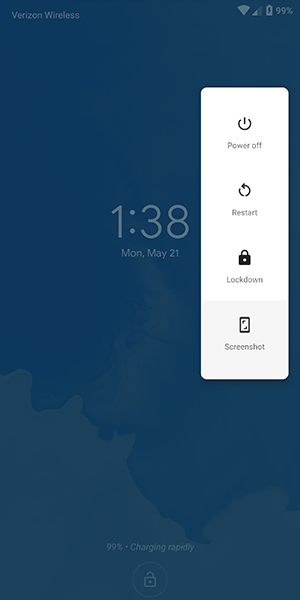
Finally, if you're still worried about logging your fingerprints on your Android device due to security concerns, the upcoming release of Android P has a security feature built-in that allows you to quickly disable fingerprint scanning if you find yourself at risk of being forced to unlock your device. Called "lockdown" in the settings menu, the option allows you to immediately disable both fingerprints and Smart Lock, just by using the option that appears within the power menu on the lock screen. It only disables those features for one lock, but if you're in a place where you're worried your biometric or smartwatch lock features might be used against you, it's a great option to feel more secure.

Notes and Reminders

If you're the type of person who likes to use a complex password on their phone and balks at the idea of using any of the smart unlock features we highlighted above, you might want to consider using the lock screen text display as a way to leave yourself helpful notes and tips to make remembering your password that much easier. Every Android device on the market today has support for placing a message on the lock screen, and you can display some pretty long messages. While most people use this as a way to label their phone (the example in Android is "Joe's Android"), you can also use it to set what amounts to old password hints from Windows and other desktop operating systems.

So, for example, if you've set your password as the name and birthdate of your daughter (ie., "elizabeth1217"), you could set the reminder on your lock screen as "ebbirth", for "elizabeth1217." This can be done for any password, even if it's a random phrase. "Candy90erring60Blinders," for example, could be hinted at on your lock screen with "Reese's, Jewelry, Sunlight." You'll still have to work to remember the numbers and the correct words that match up with the other content, but it can go a long way in helping you to remember what your password is without giving it away. Again, this is totally optional, a way for users to remember their long passwords without having to deal with giving it away or writing it down.

Password Managers

This final tip is for those among us who have a reputation for forgetting passwords and passcodes. If you're always worried about losing your password to your phone and getting locked out, you might want to try using a password manager like Lastpass or 1Password, which allows you to save all your passwords in one place with a single unlock, typically requiring a fairly long phrase in order to gain access to your passcodes. We recommend Lastpass for password manager beginners, because it's free and works with all your devices out of the box. We recommend writing the passcode down somewhere safe and secure in your house, then saving your phone's password inside of Lastpass for safekeeping. It might seem like an odd choice, and certainly won't speed up the unlocking process if you do manage to forget your password, but it's always good to have a backup unlock method to keep your phone's data safe.

***

Losing access to your phone is a nightmare. It's where all of your personal data, from bank account information to photos of your family and friends, lives and is kept safe. Being locked out of your data can feel like the end of the world, but luckily, it doesn't have to be. Whether you're worried about locking yourself of your account, or you've recently updated your phone's password and want to make sure you don't lose it, there are plenty of options to ensure you don't lose access. And even if you have, you aren't completely out of luck, thanks to the various options that exist for getting back into your account.

If you're looking for a way to unlock your phone faster, there's all sorts of opportunities to make sure your Android device is ready for you to login without having to enter your password every time. Biometric security has become fairly commonplace in the mobile arena, and likewise, Smart Lock on Android has made it easy to keep your device secure when it needs to be and unlocked when it doesn't. Overall, the security options on Android have become so plentiful that there's no reason not to keep some kind of security on your Android device. Just make sure you remember the password before you save the account information.

@EVERYTHING NT

Read more

  1. Hacking Linux
  2. Elladodelmal
  3. Hacking Web Sql Injection
  4. Hacking Wireless 101 Pdf
  5. Aprender Seguridad Informatica
  6. Mundo Hacker

Thursday, April 23, 2020

Grok-backdoor - Backdoor With Ngrok Tunnel Support


Grok-backdoor is a simple python based backdoor, it uses Ngrok tunnel for the communication. Ngrok-backdoor can generate windows, linux and mac binaries using Pyinstaller.

Disclaimer:
All the code provided on this repository is for educational/research purposes only. Any actions and/or activities related to the material contained within this repository is solely your responsibility. The misuse of the code in this repository can result in criminal charges brought against the persons in question. Author will not be held responsible in the event any criminal charges be brought against any individuals misusing the code in this repository to break the law.

Dependencies:
  • Python 2.7
  • Pyinstaller 3.21
  • python-pip 9.0.1

Installation :
pip install -r requirements.txt

Usage:
You need to register an acccount in ngrok.com to use this backdoor, provide Ngrok authcode while configuring the grok-backdoor. You will see a new tcp tunnel created in Ngrok status panel after the grok-backdoor server execution in victim machine.
Create backdoor binary by running:
python grok-backdoor.py

Linux:


Windows :


You can find the output binary in grok-backdoor/dist/ directory:


Run grok-backdoor output binary in victim machine and login to Ngrok.com control panel to see the tunnel URL:


Telnet to tunnel URL to get the Bind shell: Enjoy shell :)


Features:
  • Multi platform support(windows,linux,Mac)
  • Autheticated bind shell
  • Ngrok tunnel for communication

Related posts